

Microsoft Access can do far more than store tables and display forms. With VBA, web APIs, automation tools, and SQL Server, an Access application can also become a practical interface to modern AI services.
The important point is that AI does not replace Access. It adds another capability around the application: helping users work with data, assisting developers, processing documents, generating useful text, and connecting business workflows to AI models.
What Does “AI + Microsoft Access” Actually Mean?
There is no single way to add AI to Access. The architecture depends on what you want the application to do.
- AI-assisted development: use AI while writing, reviewing, explaining, and troubleshooting VBA and SQL.
- API integration: have Access send selected information to an AI service and receive a structured result.
- Middleware: let a service such as an automation workflow or small web service handle authentication, AI calls, logging, and data transformation.
- Document processing: extract useful information from PDFs, emails, forms, or other business documents and store the results in Access.
- AI-powered applications: add natural-language search, classification, summarization, drafting, or decision-support features to an existing Access application.
In other words, “AI + Access” is usually an integration problem rather than a new database technology.
What AI Can Do for an Access Application
AI is particularly useful when an application contains information that is easy for a person to understand but difficult to process with fixed rules alone.
- Summarize customer notes, service records, or long documents.
- Classify incoming requests into categories.
- Extract names, dates, amounts, reference numbers, and other fields from documents.
- Generate draft emails, descriptions, explanations, or internal notes.
- Convert a natural-language question into a proposed SQL query.
- Explain VBA procedures and identify likely problems.
- Suggest validation rules or transformations for imported data.
- Search business information using natural-language questions when the underlying query is controlled by the application.
AI is not a replacement for database rules. A value such as an invoice amount, customer ID, or approval status should normally be validated by deterministic application logic. AI is best used where interpretation, summarization, extraction, or language understanding adds value.
5 Practical Ways to Add AI to Access
1. Use AI while developing VBA and SQL
This is the easiest place to start because the AI does not need access to your production database. Give an AI assistant a carefully selected procedure, query, error message, or schema description and ask it to explain or improve the code.
2. Call an AI API directly from VBA
Access can make HTTP requests from VBA. The application can collect a prompt, send JSON to an AI API, receive JSON in response, and place the result into a form, table, or report.
3. Put a middleware layer between Access and AI
Instead of letting every Access workstation communicate directly with an AI provider, Access can call your own small API or automation workflow. That middle layer can protect credentials, validate requests, limit what data leaves the network, log activity, and normalize responses.
4. Use AI to process documents and imported data
Access can remain the system where structured records are stored while another service handles document understanding. For example, an invoice PDF can be processed to identify a vendor, invoice number, date, totals, and line-item information before the application presents the result for review.
5. Add AI features directly to an Access application
A mature application can expose AI through buttons, forms, search boxes, or workflow actions. Examples include “Summarize Record,” “Draft Response,” “Explain This Error,” “Classify Document,” or “Ask About These Records.”
Example: Connecting Access to an AI API
The basic pattern is straightforward:
- Collect only the information required for the task.
- Build a structured request in JSON.
- Send an HTTPS request from VBA or from a middleware service.
- Read the JSON response.
- Validate the result before writing it into business data.
- Log the request outcome without storing unnecessary sensitive information.
' ===== Module: AIRequest =====
Option Compare Database
Option Explicit
' TEST ONLY: use a placeholder while sharing this example.
' For production, keep API credentials outside the Access front end.
Private Const API_KEY As String = "PASTE-YOUR-KEY"
Private Const AI_MODEL As String = "gpt-4o-mini"
Private Const API_URL As String = "https://api.openai.com/v1/responses"
Private Function JsonEscape(ByVal value As String) As String
    Dim i As Long
    value = Replace(value, "\", "\\")
    value = Replace(value, """", "\"""")
    value = Replace(value, vbCrLf, "\n")
    value = Replace(value, vbCr, "\n")
    value = Replace(value, vbLf, "\n")
    value = Replace(value, vbTab, "\t")
    For i = 0 To 31
        value = Replace(value, Chr$(i), "\u" & Right$("000" & Hex$(i), 4))
    Next i
    JsonEscape = value
End Function
Private Function ReadJsonString(ByVal json As String, ByVal startPos As Long) As String
    Dim i As Long
    Dim ch As String
    Dim result As String
    i = startPos
    Do While i <= Len(json)
        ch = Mid$(json, i, 1)
        If ch = """" Then Exit Do
        If ch = "\" Then
            i = i + 1
            If i > Len(json) Then Exit Do
            Select Case Mid$(json, i, 1)
                Case "n": result = result & vbCrLf
                Case "t": result = result & vbTab
                Case "r": result = result & vbCr
                Case "b": result = result & vbBack
                Case "f": result = result & vbFormFeed
                Case """", "\", "/": result = result & Mid$(json, i, 1)
                Case "u"
                    If i + 4 <= Len(json) Then
                        result = result & ChrW$(CLng("&H" & Mid$(json, i + 1, 4)))
                        i = i + 4
                    End If
            End Select
        Else
            result = result & ch
        End If
        i = i + 1
    Loop
    ReadJsonString = result
End Function
Private Function ExtractOutputText(ByVal json As String) As String
    Dim marker As String
    Dim p As Long
    Dim textPos As Long
    marker = """output_text"""
    p = InStr(1, json, marker, vbTextCompare)
    If p = 0 Then
        Err.Raise vbObjectError + 1001, "AIRequest", "No output text found in AI response."
    End If
    textPos = InStr(p + Len(marker), json, """text""", vbTextCompare)
    If textPos = 0 Then
        Err.Raise vbObjectError + 1002, "AIRequest", "No text value found in AI response."
    End If
    textPos = InStr(textPos + 6, json, """", vbBinaryCompare)
    If textPos = 0 Then
        Err.Raise vbObjectError + 1003, "AIRequest", "Invalid text value in AI response."
    End If
    ExtractOutputText = ReadJsonString(json, textPos + 1)
End Function
Public Function AiSummarizeNote(ByVal customerNote As String) As String
    Dim http As Object
    Dim body As String
    Dim responseText As String
    If Len(Trim$(customerNote)) = 0 Then
        Err.Raise vbObjectError + 1004, "AIRequest", "Please enter some text."
    End If
    body = "{""model"":""" & AI_MODEL & """,""store"":false,""input"":""Summarize this customer note in two sentences: " & JsonEscape(customerNote) & """}"
    Set http = CreateObject("WinHttp.WinHttpRequest.5.1")
    http.SetTimeouts 5000, 10000, 10000, 60000
    http.Open "POST", API_URL, False
    http.SetRequestHeader "Authorization", "Bearer " & API_KEY
    http.SetRequestHeader "Content-Type", "application/json"
    http.Send body
    If http.Status < 200 Or http.Status >= 300 Then
        Err.Raise vbObjectError + 1005, "AIRequest", _
                  "AI request failed: " & http.Status & " - " & http.ResponseText
    End If
    responseText = http.ResponseText
    AiSummarizeNote = ExtractOutputText(responseText)
End Function
' ===== Form: frmAiChat =====
Private Sub cmdSend_Click()
    On Error GoTo ErrHandler
    If Len(Trim$(Nz(Me.txtInput.Value, ""))) = 0 Then
        MsgBox "Please enter a question or note.", vbExclamation, "AI Test"
        Exit Sub
    End If
    DoCmd.Hourglass True
    Me.txtOutput.Value = "Working..."
    Me.txtOutput.Value = AiSummarizeNote(Me.txtInput.Value)
CleanExit:
    DoCmd.Hourglass False
    Exit Sub
ErrHandler:
    Me.txtOutput.Value = Null
    MsgBox Err.Description, vbExclamation, "AI Test"
    Resume CleanExit
End Sub
This is intentionally a testing example, not a production-ready AI module. The sample uses a placeholder API key so the code can be shared safely. In a real deployment, do not distribute production credentials inside an Access front end. Move the AI call behind a middleware or automation layer so the API key stays server-side, and add appropriate JSON validation, timeout handling, retries, logging, and error handling.
Real-world example: The screenshots below show a working Microsoft Access form making an AI request through VBA. The form accepts a question, sends it to the AI service, and displays the returned response inside Access.
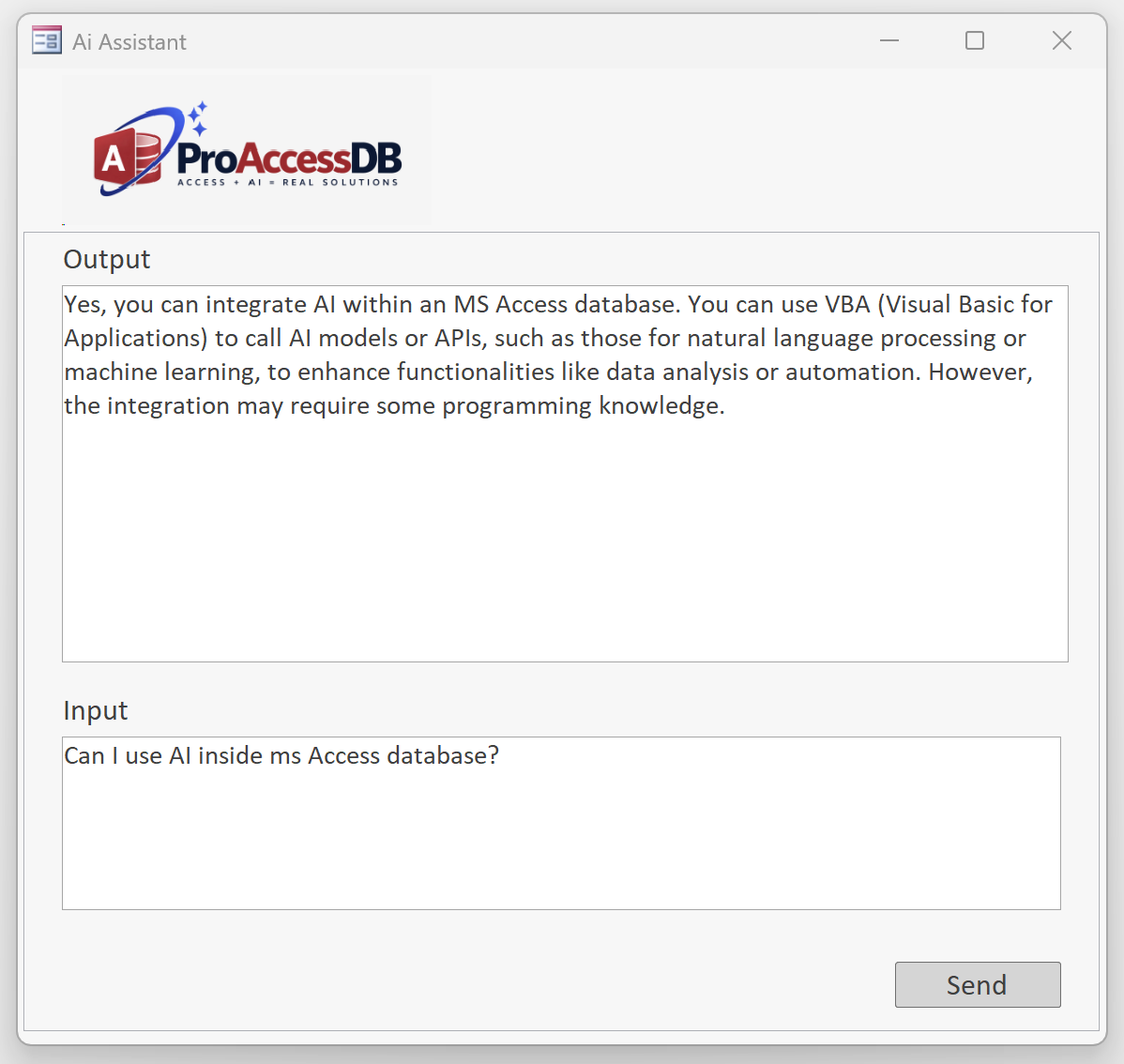
Figure: A Microsoft Access form sending a question to an AI service and displaying the response.
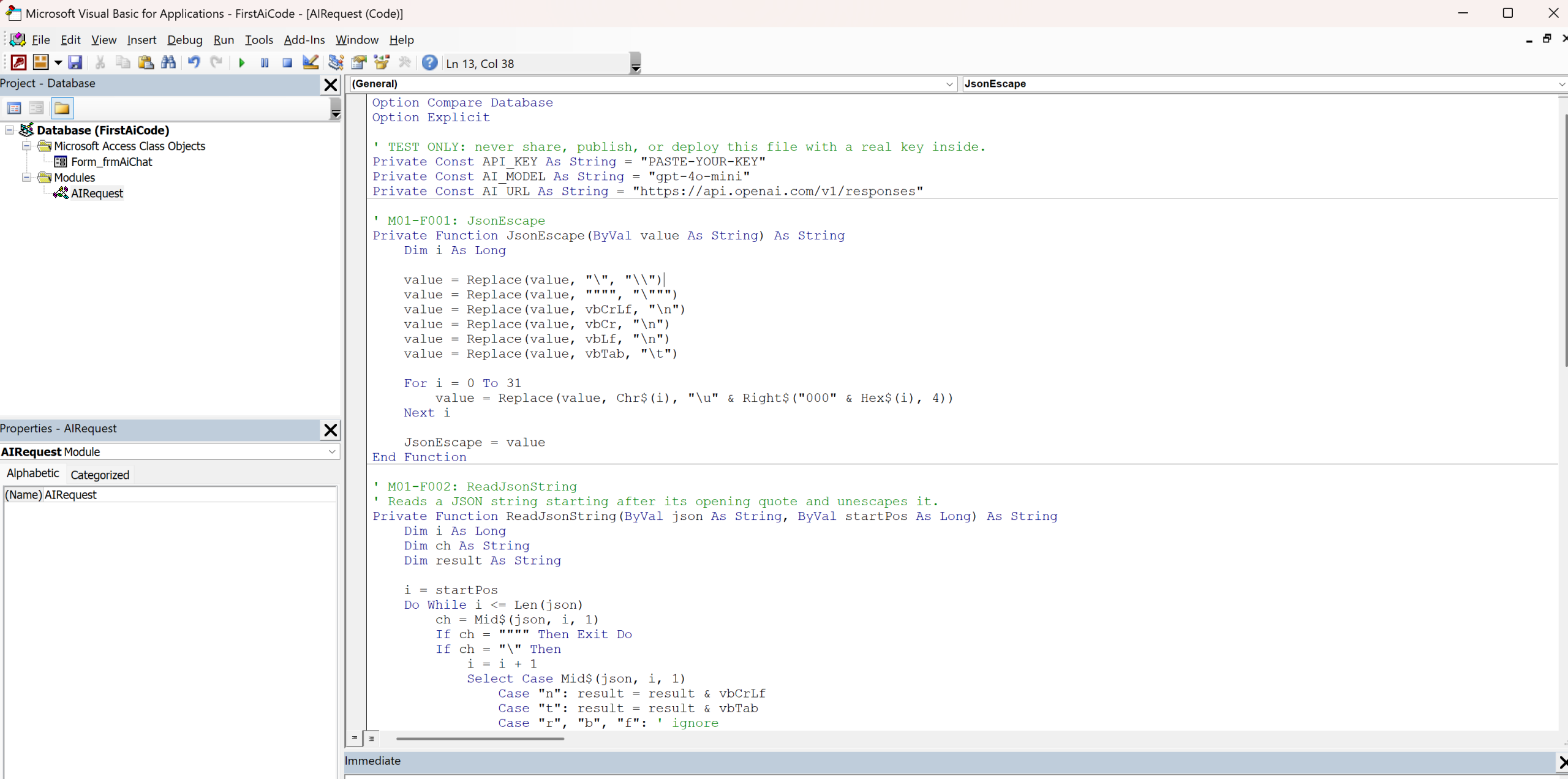
Figure: The VBA module responsible for preparing the request, calling the API, and reading the returned text.
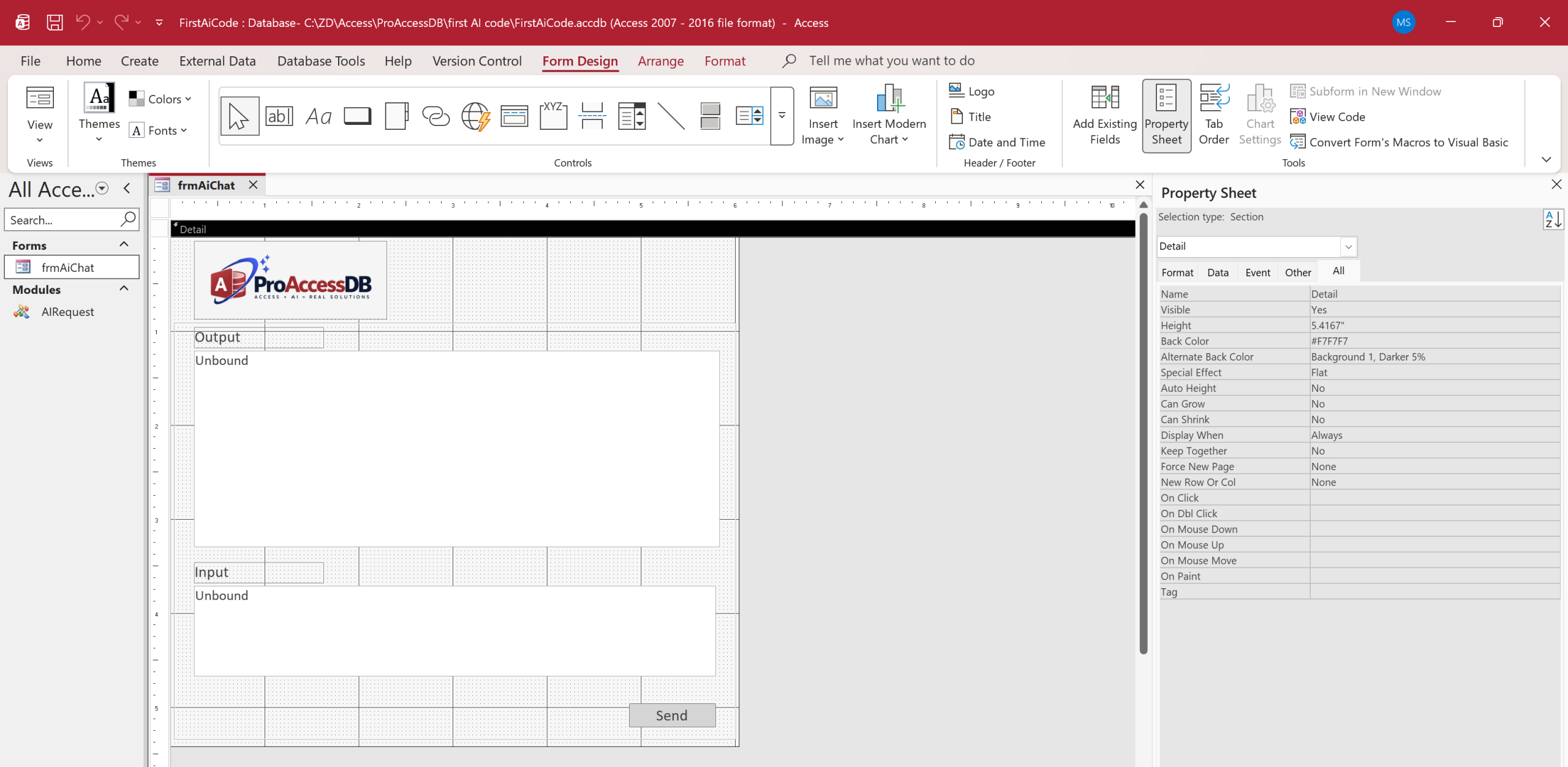
Figure: The Access form in design view, showing the input, output, and Send controls.
This example is intentionally simple. It demonstrates the basic connection between Microsoft Access, VBA, and an AI service, but it is only a starting point. The same approach can be expanded into much more useful application features.
For example, an Access application could use AI to summarize customer notes, draft emails or responses, classify incoming records, extract information from documents, turn natural-language questions into SQL, help users search business data, analyze trends, generate reports, or assist developers with VBA and database tasks. AI can also be combined with existing Access forms, queries, reports, and automated workflows so that the AI becomes one part of a larger business process rather than a separate tool.
The template used for this demonstration could also become a useful free starting point for Access developers.
Get the Free AI + Access Starter Template →
Rather than treating a free download as the product itself, a possible ProAccessDB strategy is to offer a basic version as a practical entry point, then provide documentation, enhanced capabilities, ready-to-use features, or more advanced Access solutions for users who need them. The exact approach should be tested before launch so the free template builds interest without giving away the parts that could become valuable products.
The OpenAI API uses API-key authentication and supports the Responses API for text generation and other model capabilities. OpenAI’s documentation also recommends keeping API keys secret and loading them securely rather than exposing them in client-side code. OpenAI API quickstart and API authentication guidance.
Using AI for VBA and SQL Development
AI can be particularly useful during development because the developer can keep control of the final code. It can explain an unfamiliar procedure, propose a refactor, generate repetitive VBA, convert a requirement into a first SQL draft, or help diagnose an error.
For SQL generation, the safest workflow is not “let AI run whatever SQL it creates.” Instead, provide the model with the relevant schema, ask it to generate a proposed query, review the query, and then execute it through normal application controls.
The same principle applies to VBA. AI-generated code should be treated as developer-generated code that still needs testing, error handling, security review, and compatibility checks.
Using AI to Process Documents and Business Data
Document processing is one of the more practical business uses for AI because many organizations already have a gap between unstructured documents and structured database records.
A useful architecture is:
- Access identifies the document and the business record it belongs to.
- A processing service reads the document and extracts candidate fields.
- AI interprets information that requires context or language understanding.
- The application validates required fields and business rules.
- A user reviews exceptions before the final record is committed.
This human-review step matters. AI extraction can be very useful without being perfectly reliable. A production application should make uncertainty and exceptions visible instead of silently treating every AI result as fact.
AI + SQL Server + Access
For larger or more important applications, AI does not have to communicate with the Access file directly. A common architecture is Access as the user interface, SQL Server as the data layer, and a service or automation layer responsible for AI integration.
This approach separates responsibilities. Access can continue to provide forms, reports, and business workflows. SQL Server can hold the central data. The integration layer can control authentication, AI requests, logging, and other services.
Microsoft’s SQL Server Migration Assistant for Access can convert Access database objects, migrate data, and link Access tables to SQL Server or Azure SQL. That makes a staged architecture possible: the application does not necessarily have to be rebuilt from scratch just because the data layer is modernized. Microsoft Learn: Access to SQL Server migration.
Security and Privacy Considerations
Adding AI to an Access application also adds a new data boundary. Before sending business information to an external service, determine what information is allowed to leave the environment and what must remain internal.
- Protect API keys. Do not hard-code production credentials into forms, VBA modules, or files that are distributed to users.
- Minimize data sent to AI. Send only the fields required for the task.
- Remove or mask sensitive information when it is not required for the AI task.
- Use a middleware layer when centralized credential management, policy enforcement, or audit logging is important.
- Validate AI output before changing financial, customer, inventory, or other important records.
- Log appropriately. Record enough information to troubleshoot the integration without creating an unnecessary copy of sensitive business data.
- Review provider data controls. Retention, storage, regional requirements, contractual terms, and available privacy controls depend on the provider and service configuration.
For example, OpenAI’s current API documentation states that API keys are secrets and should not be exposed in client-side code. Its data-controls documentation also describes retention behavior for different API features and configurations. Review the provider’s current documentation and your organization’s requirements before sending production data. OpenAI API authentication OpenAI API data controls
When AI + Access Makes Sense
AI integration is worth considering when the application has a clear task where language understanding, document interpretation, summarization, classification, or developer assistance can reduce manual work.
- You already have a useful Access application and want to extend it.
- Users spend significant time reading or classifying documents.
- Staff repeatedly write similar explanations or responses.
- Users need a more natural way to search or ask questions about controlled business data.
- Your development team wants faster assistance with VBA, SQL, documentation, and troubleshooting.
- You want to modernize the data layer without immediately replacing the Access front end.
When Another Platform May Be Better
AI does not make every Access application a good fit for Access. If the core requirement is a browser-first, mobile-first, highly distributed, or cloud-native application, another platform may be a better starting point.
Likewise, an application with very high concurrency, strict enterprise security requirements, or complex distributed workflows may need a server-based architecture from the beginning. In those situations, Access can still sometimes serve as a client or transitional application, but it should not be forced to solve a problem it was not designed to solve.
Where ProAccessDB Fits
At ProAccessDB, the goal is not to add AI to Access simply because AI is available. The useful question is whether AI can solve a real business problem while keeping the application understandable, maintainable, and controlled.
That is the idea behind AccessAI Generator: exploring how AI can work alongside Microsoft Access to assist with practical development tasks such as generating or improving VBA and SQL, working with structured prompts, and turning AI capabilities into repeatable application features. The goal is to make AI useful inside a developer’s existing Access workflow rather than requiring a complete rebuild.
The product direction is intentionally broader than a single “AI button.” A useful Access AI tool should fit into the developer’s workflow, respect the database structure, and keep the human developer in control of what is accepted and deployed.
Conclusion
Adding AI to Microsoft Access is practical when it is treated as an integration and application-design problem.
Access can call AI APIs directly, work through a middleware or automation layer, use AI alongside SQL Server, or simply use AI as a development assistant. The strongest solutions keep deterministic database rules in control while using AI where interpretation and language understanding provide a real advantage.
You do not need to replace a working Access application just to start using AI. Start with one useful capability, validate the result, and expand from there.